Turn off password hints in the Mac login window

Turn off Show password hints in the Lock Screen settings. A hint can appear after someone clicks the question mark beside the password field or enters the wrong password three times. Even a carefully written hint can reveal information useful for guessing or social engineering.

macOS 13 and later

  1. Choose Apple menu > System Settings.
  2. Click Lock Screen in the sidebar.
  3. Turn off Show password hints.
Lock Screen settings with Show password hints turned off

macOS 10.11 through 12

  1. Choose Apple menu > System Preferences > Users & Groups.
  2. Unlock the preference pane if required, then select Login Options.
  3. Deselect Show password hints.
Legacy Users & Groups Login Options with Show password hints unchecked

Security limits

Disabling hints does not strengthen the password itself, hide the account name, add multi-factor authentication, or disable password-reset and account-recovery methods. It also may not change the separate FileVault preboot screen shown before macOS starts. Use a unique, strong login password and consider requiring users to enter both their name and password.
Primary source


You might also be interested in

Check your security settings

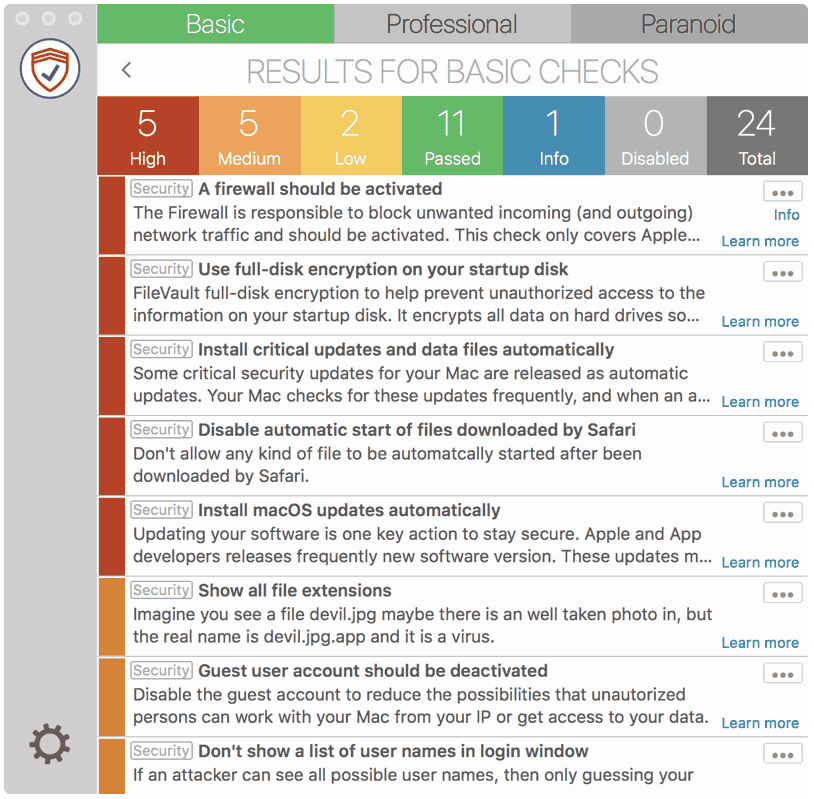
SimpleumCheck Screenshot

SimpleumCheck checks the security settings on your Mac in three stages and gives you recommendations on how you can improve your security even further.

For Free

Protect and encrypt your data

SimpleumSafe Screenshot


Protect your data with SimpleumSafe App for Mac, iPhone and iPad. Don’t compromise when it comes to protecting your data.


Other security setting to check


PLEASE READ THE FOLLOWING TIP AND DISCLAIMER!

Keep in mind: not every security and privacy setting is suitable for everyone. Enhancing the security can lead in losing functionality and/or comfort.
Before making changes, please backup your Mac! Do not make too many change at once. After changing your Mac, check if your normal usage of your Mac has changed in a way which fits to you. Are your really willing to loose some functionality and/or comfort?
Most important is, that you learn and understand what are the advantages and disadvantages of the security settings and that you are aware about the capabilities and risks of your Mac configuration.

To skip this result message from your next security scan, you can deactivate this check. FAQ: How to deactivate a check.

CHECK RESULTS BY SIMPLEUMCHECK DO NOT COVER ALL ASPECTS OF POSSIBLE SECURITY CHECKS OR MAYBE INCORRECT OR INCOMPLETE. THE RESULTS ARE ONLY CLUES FOR RECOMMENDATIONS TO IMPROVE SECURITY AND PRIVACY ON THE MAC.

The use of SimpleumCheck, the checks and FAQ articles are provided under the SimpleumCheck End User License Agreement (EULA).