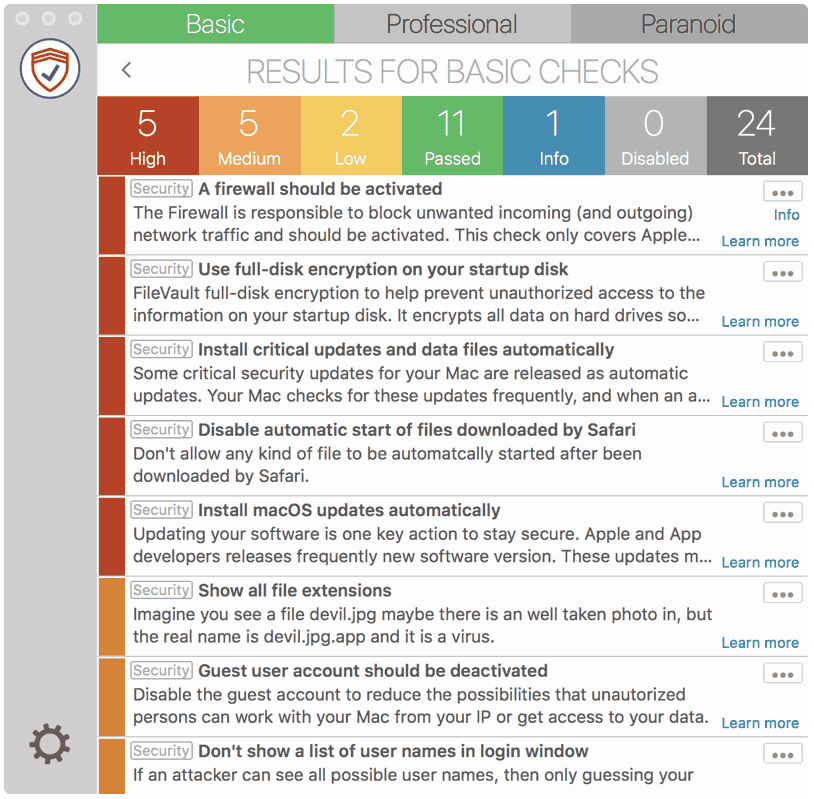
Turn off Guest User access if nobody needs temporary, password-free use of the Mac. Also turn off Allow guest users to connect to shared folders unless anonymous network access is intentional.
This is a tradeoff rather than a universal rule: Apple says guest access can help Find My locate a missing Mac if someone uses the guest browser to connect it to the internet.
macOS 13 and later
- Choose Apple menu > System Settings.
- Click Users & Groups.
- Click the information button beside Guest User.
- Turn off Allow guests to log in to this computer.
- Turn off Allow guest users to connect to shared folders if guest network access is not required.
You cannot change Guest User settings while a guest is logged in.

macOS 10.11 through 12
- Choose Apple menu > System Preferences > Users & Groups.
- Unlock the preference pane, then select Guest User.
- Deselect Allow guests to log in to this computer.
- Deselect Allow guest users to connect to shared folders if it is not required.

What Guest User can and cannot do
- A guest signs in without a password, cannot change user or computer settings, and cannot log in remotely when Remote Login is off.
- Files in the guest’s temporary home folder are deleted at logout. Do not use that folder for data that must be retained.
- With FileVault on, Apple limits Guest User to a web browser; the guest cannot access the encrypted startup disk or create files there.
- Local Guest User login and network guest access to shared folders are separate settings. Review both.