Turn on Safari fraudulent website warnings on Mac
Turn on Warn when visiting a fraudulent website in Safari. Safari can then warn you about sites reported as deceptive, malicious, or potentially harmful, including phishing pages that imitate a bank, government agency, or email provider to steal passwords and other information.
How to fix it
Current Safari versions on macOS
- Open Safari.
- Choose Safari > Settings.
- Click Security.
- Select Warn when visiting a fraudulent website.
In older Safari versions, choose Safari > Preferences > Security and enable the equivalent checkbox.
What the warning does—and does not do
Safari may send information calculated from a website address to its Safe Browsing providers to check whether the site has been reported as fraudulent. Apple describes this processing in Safari > Settings > Privacy > About Safari & Privacy.
The warning is an additional safeguard, not a guarantee that every new or targeted phishing page will be detected. If Safari shows a deceptive, malicious, certificate, or insecure-connection warning, do not enter credentials or payment information. Also verify the address yourself: HTTPS encrypts a connection, but does not prove that the site is trustworthy.
For another browser credential boundary, see Disable Safari AutoFill when it is not required.
Apple sources
You might also be interested in
Check your security settings
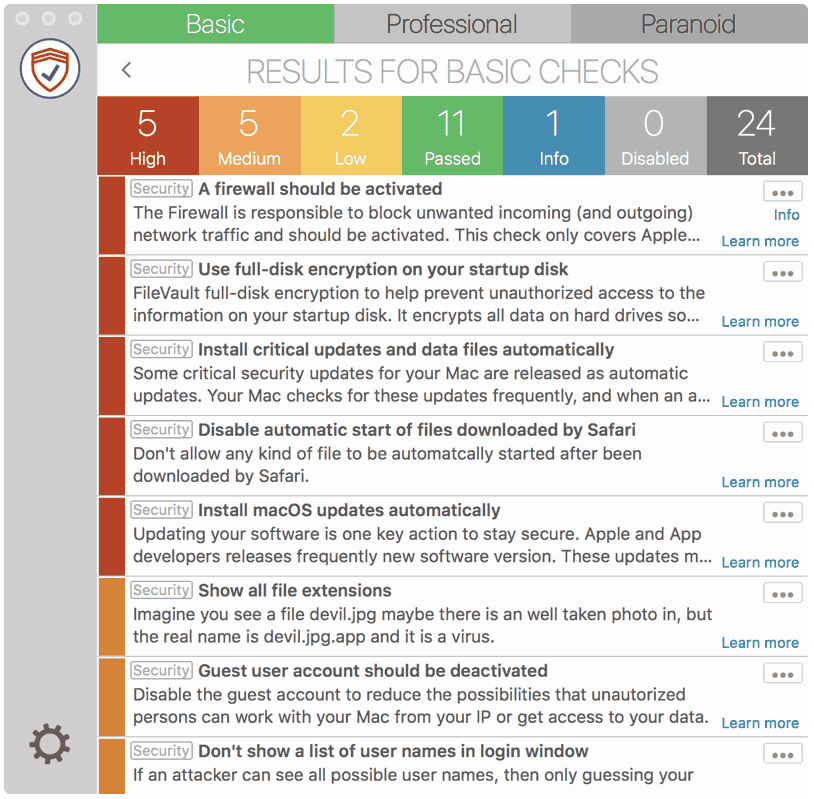
SimpleumCheck checks the security settings on your Mac in three stages and gives you recommendations on how you can improve your security even further.
For Free
Protect and encrypt your data
Protect your data with SimpleumSafe App for Mac, iPhone and iPad. Don’t compromise when it comes to protecting your data.
Other security setting to check
PLEASE READ THE FOLLOWING TIP AND DISCLAIMER!
Keep in mind: not every security and privacy setting is suitable for everyone. Enhancing the security can lead in losing functionality and/or comfort.
Before making changes, please backup your Mac! Do not make too many change at once. After changing your Mac, check if your normal usage of your Mac has changed in a way which fits to you. Are your really willing to loose some functionality and/or comfort?
Most important is, that you learn and understand what are the advantages and disadvantages of the security settings and that you are aware about the capabilities and risks of your Mac configuration.
To skip this result message from your next security scan, you can deactivate this check. FAQ: How to deactivate a check.
CHECK RESULTS BY SIMPLEUMCHECK DO NOT COVER ALL ASPECTS OF POSSIBLE SECURITY CHECKS OR MAYBE INCORRECT OR INCOMPLETE. THE RESULTS ARE ONLY CLUES FOR RECOMMENDATIONS TO IMPROVE SECURITY AND PRIVACY ON THE MAC.
The use of SimpleumCheck, the checks and FAQ articles are provided under the SimpleumCheck End User License Agreement (EULA).