Enable Secure Keyboard Entry in Terminal on Mac
In Terminal, choose Terminal > Secure Keyboard Entry. A checkmark beside the menu item means it is enabled. Apple says this feature can prevent other applications on the Mac or network from detecting and recording what you type in Terminal.
How to enable it
- Open Terminal.
- Choose Terminal > Secure Keyboard Entry.
- Confirm that a checkmark appears beside Secure Keyboard Entry.
Before enabling it, check whether any accessibility, automation, input, or remote-control tool you deliberately use needs to receive keystrokes from Terminal. Those tools may stop working as expected while Secure Keyboard Entry is active.
Security limits
- Apple describes the protection as something that can prevent input monitoring; it is not a guarantee against every compromised or highly privileged process.
- It applies to keyboard input in Terminal while the setting is enabled. It does not encrypt Terminal output, command history, clipboard contents, or files.
- It does not secure the remote computer used through SSH, and it cannot make an untrusted command or script safe.
- Continue to use a locked Mac, current software, and least-privilege accounts for administrative work.
Primary sources
You might also be interested in
Check your security settings
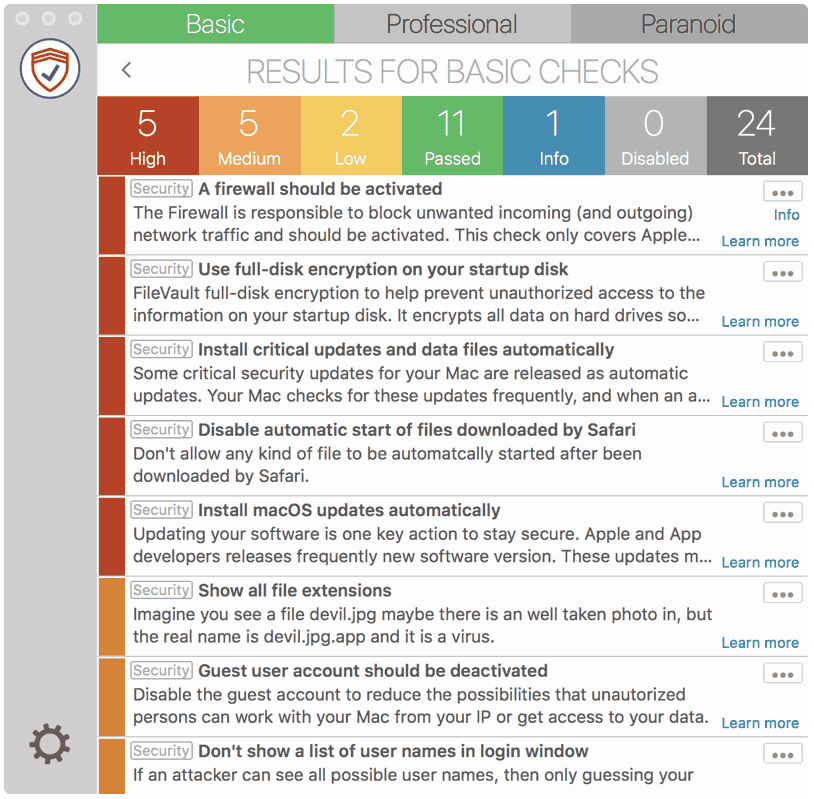
SimpleumCheck checks the security settings on your Mac in three stages and gives you recommendations on how you can improve your security even further.
For Free
Protect and encrypt your data
Protect your data with SimpleumSafe App for Mac, iPhone and iPad. Don’t compromise when it comes to protecting your data.
Other security setting to check
PLEASE READ THE FOLLOWING TIP AND DISCLAIMER!
Keep in mind: not every security and privacy setting is suitable for everyone. Enhancing the security can lead in losing functionality and/or comfort.
Before making changes, please backup your Mac! Do not make too many change at once. After changing your Mac, check if your normal usage of your Mac has changed in a way which fits to you. Are your really willing to loose some functionality and/or comfort?
Most important is, that you learn and understand what are the advantages and disadvantages of the security settings and that you are aware about the capabilities and risks of your Mac configuration.
To skip this result message from your next security scan, you can deactivate this check. FAQ: How to deactivate a check.
CHECK RESULTS BY SIMPLEUMCHECK DO NOT COVER ALL ASPECTS OF POSSIBLE SECURITY CHECKS OR MAYBE INCORRECT OR INCOMPLETE. THE RESULTS ARE ONLY CLUES FOR RECOMMENDATIONS TO IMPROVE SECURITY AND PRIVACY ON THE MAC.
The use of SimpleumCheck, the checks and FAQ articles are provided under the SimpleumCheck End User License Agreement (EULA).