Require an administrator password for system-wide Mac settings

Turn on Require an administrator password to access system-wide settings if non-administrator users or an unattended session should not be able to change locked system settings without administrator approval.

macOS 13 and later

  1. Choose Apple menu > System Settings.
  2. Click Privacy & Security in the sidebar.
  3. Scroll down and click Advanced.
  4. Turn on Require an administrator password to access system-wide settings.
  5. Authenticate when macOS asks you to confirm the change.

macOS 10.11 through 12

  1. Choose Apple menu > System Preferences > Security & Privacy.
  2. Unlock the preference pane and click Advanced.
  3. Select Require an administrator password to access system-wide preferences.

Security and functional limits

  • Apple describes this as protection for locked system settings. It does not force administrator authentication for every personal or application preference.
  • It does not protect an already authenticated administrator session or make an administrator password safe to share.
  • Device-management profiles, command-line tools, installers, and privileged processes can follow different authorization paths.
  • For routine work, a standard user account provides a clearer privilege boundary than using an administrator account all day.
Primary sources


You might also be interested in

Check your security settings

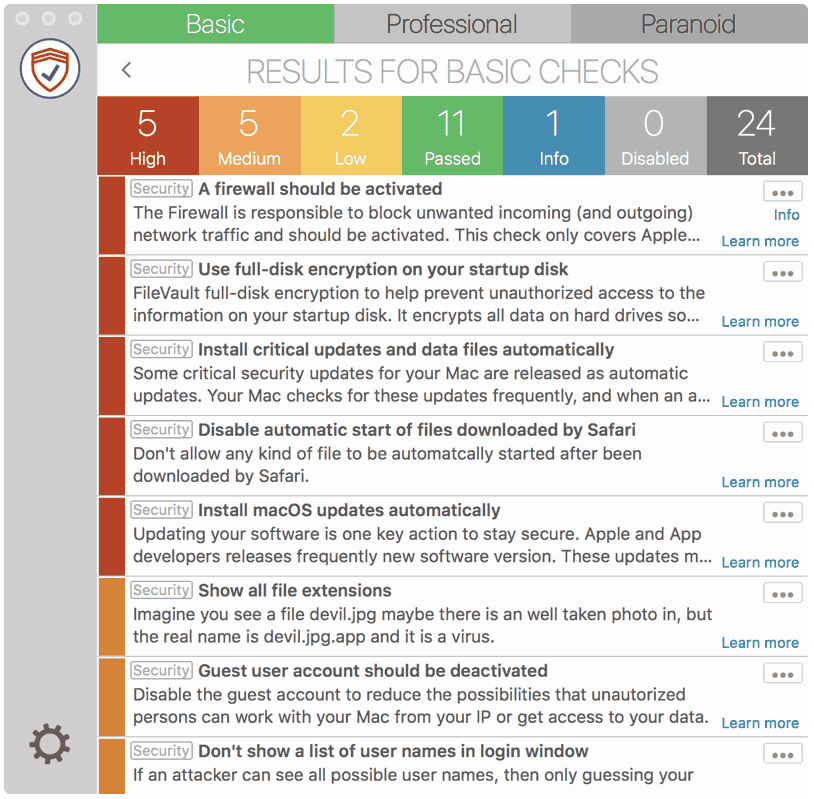
SimpleumCheck Screenshot

SimpleumCheck checks the security settings on your Mac in three stages and gives you recommendations on how you can improve your security even further.

For Free

Protect and encrypt your data

SimpleumSafe Screenshot


Protect your data with SimpleumSafe App for Mac, iPhone and iPad. Don’t compromise when it comes to protecting your data.


Other security setting to check


PLEASE READ THE FOLLOWING TIP AND DISCLAIMER!

Keep in mind: not every security and privacy setting is suitable for everyone. Enhancing the security can lead in losing functionality and/or comfort.
Before making changes, please backup your Mac! Do not make too many change at once. After changing your Mac, check if your normal usage of your Mac has changed in a way which fits to you. Are your really willing to loose some functionality and/or comfort?
Most important is, that you learn and understand what are the advantages and disadvantages of the security settings and that you are aware about the capabilities and risks of your Mac configuration.

To skip this result message from your next security scan, you can deactivate this check. FAQ: How to deactivate a check.

CHECK RESULTS BY SIMPLEUMCHECK DO NOT COVER ALL ASPECTS OF POSSIBLE SECURITY CHECKS OR MAYBE INCORRECT OR INCOMPLETE. THE RESULTS ARE ONLY CLUES FOR RECOMMENDATIONS TO IMPROVE SECURITY AND PRIVACY ON THE MAC.

The use of SimpleumCheck, the checks and FAQ articles are provided under the SimpleumCheck End User License Agreement (EULA).