Understanding SimpleumSafe
Access your safe through Files and edit documents in other apps (iOS)
Want to open and edit a document from your safe in another app, or save a new document to your safe? On iPhone and iPad, Apple’s file picker connects SimpleumSafe with apps that support this access. This guide explains how to show SimpleumSafe as a location, authorize access to a safe, and work with your documents.
We explain the workflow using Apple Pages as an example. Pages represents an editing app in this guide. The file formats and saving options available depend on the app you use.
For iPhone and iPad · Example app: Apple Pages
At a glance
Enable SimpleumSafe as a location in Files. Then authenticate to the safe you want to use, or continue with an authorization that is still valid. In an app that supports editing in place, you can open a document from the safe and save changes back to its original location.
SimpleumSafe provides a File Provider Extension for this connection. It makes your safe available in Apple’s Files app and in supported Open and Save dialogs. You do not need an additional file manager.
What you need
- SimpleumSafe and a safe already set up on your iPhone or iPad.
- Your safe password, or biometric authentication configured for that safe.
- An editing app that supports your file format and access through Apple’s file picker.
- For the illustrated example, we use Pages and a Pages document, such as
Project Overview.pages.
Whether you can save changes directly to the original file or need to save a copy depends on the editing app’s capabilities. The Pages steps below show a workflow we have checked with this app.
Part 1 · Access from other apps
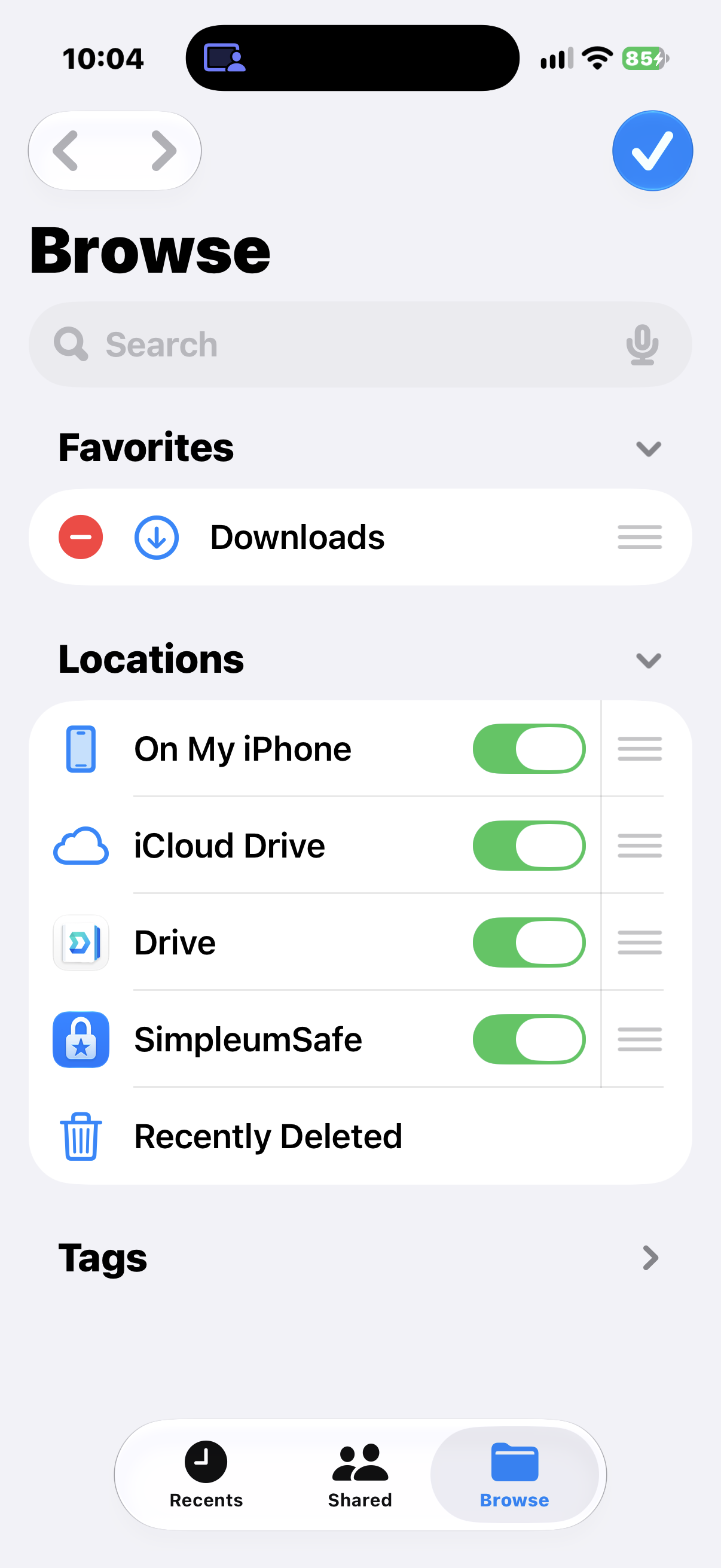
1. Show SimpleumSafe in Files
First enable SimpleumSafe as a location so that Apple’s file picker can offer it.
- Open Files.
- On iPhone, tap Browse. If you are inside a folder, go back to the list of locations.
- Tap the More button (…), then Edit.
- Turn on SimpleumSafe and confirm with the checkmark in the top-right corner.
On iPad: Locations appear in the sidebar. Show the sidebar if it is hidden. The position of the More button can vary with the layout and operating system version.
Open the safe you want to use
- Select SimpleumSafe under Locations in Files.
- If authentication is requested, select your safe.
- Enter your safe password and tap Open Safe, or use biometric authentication if it is available for that safe.
- Open the folder you need.
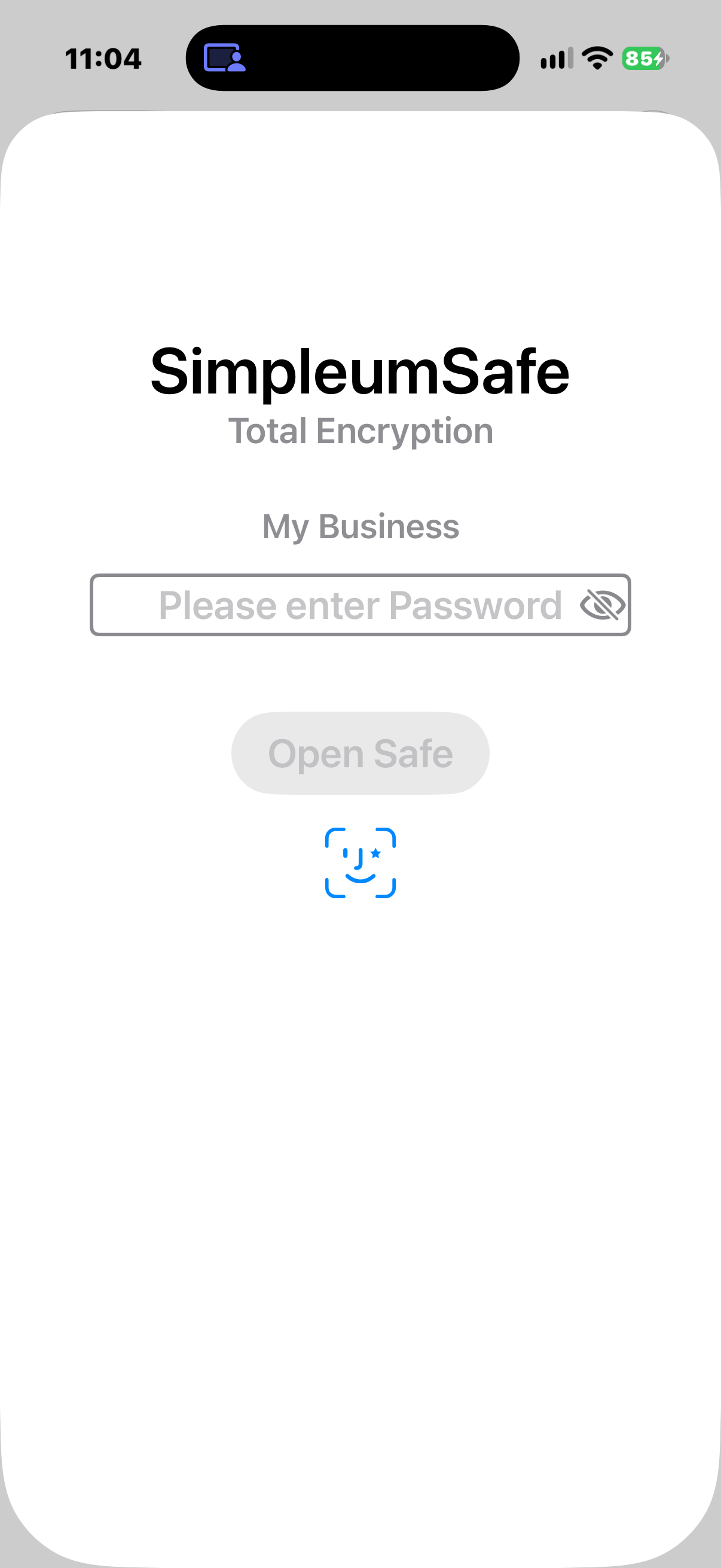
If the safe opens without another password prompt, an authorization may already be valid. The next section explains why.
2. Why you may not be asked for a password every time
Showing SimpleumSafe as a location and authorizing access to a safe are separate steps. The location can remain visible in Files. Access to its contents uses an authenticated session.
While a time-limited authorization is valid, SimpleumSafe can reuse the earlier authentication. You do not need to enter the password again for every folder you open.
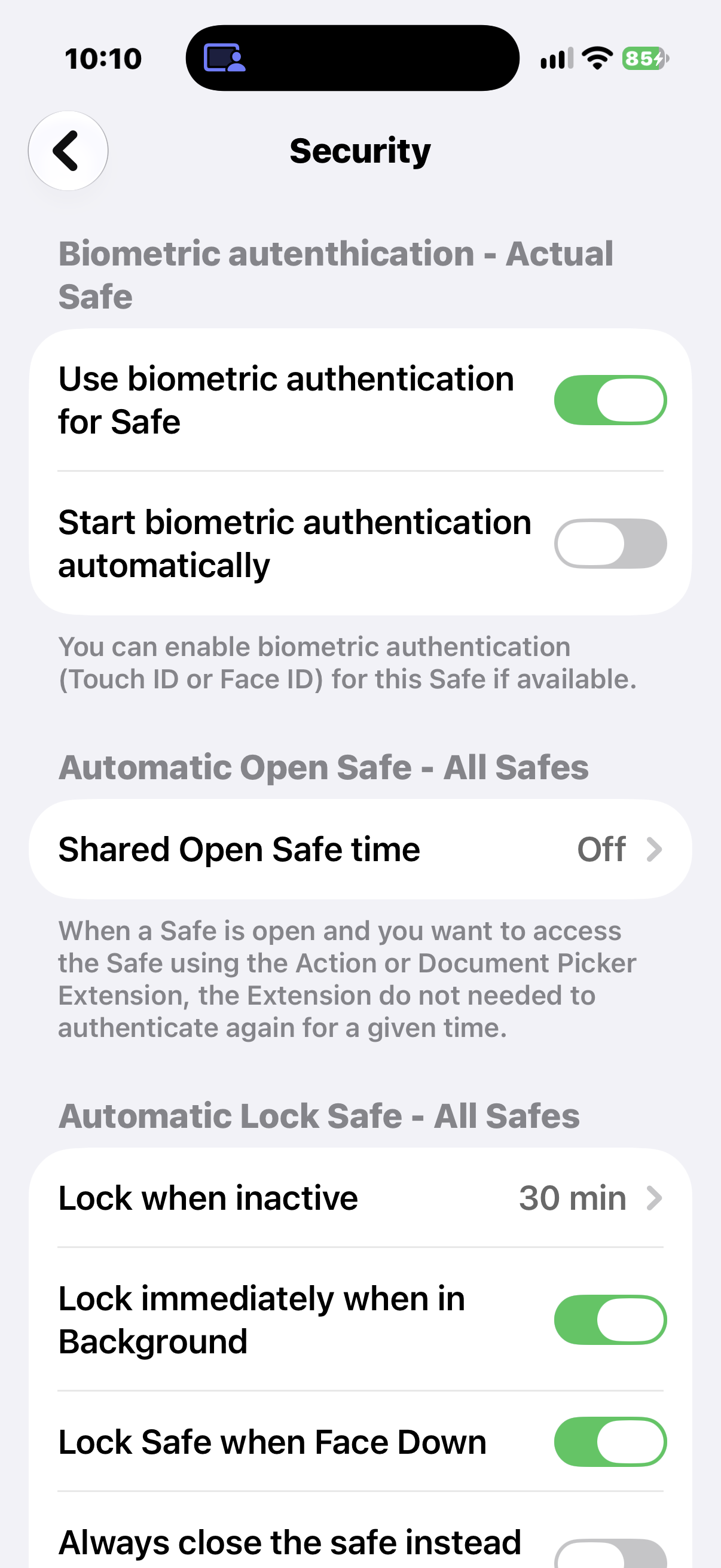
Shared Open Safe time
In SimpleumSafe, open Settings → Security → Shared Open Safe time. Authenticate if prompted. This setting controls how long an authenticated session can be reused by extensions. A session established in SimpleumSafe can then also allow access from Files.
The available regular choices are Off, 5 minutes, 15 minutes, 30 minutes, and 1 hour. The shared interval starts when the authenticated session is opened; browsing another folder does not restart it.
What does Off mean?
With shared time turned off, opening the safe in the main app alone does not authorize this external access. You can authenticate directly when accessing the safe through Files.
This external authorization is also time-limited. In the app implementation examined for this draft, its duration follows Lock when inactive. For this external access, the interval is measured from opening the session, rather than from your most recent edit.
Expiration, locking, and closing
After authorization expires, browsing the safe again may require authentication. Explicitly closing the safe revokes the shared session.
Switching to another app does not by itself tell you whether authorization has ended. Depending on your settings, the main app may lock its screen or close the safe when it goes into the background. A locked app screen and a closed safe are different states.
Already opened content may remain accessible
Another app needs readable document data to display and edit it. Expiration does not automatically make content already handed to that app disappear. The editing app may also create copies of its own.
Part 2 · Edit documents in other apps
3. Open and edit an existing document
In an app that supports Apple’s file picker, choose SimpleumSafe as the location and open the document you want. Whether you can edit it in place depends on the app and file format.
Example: Edit an existing document in Pages
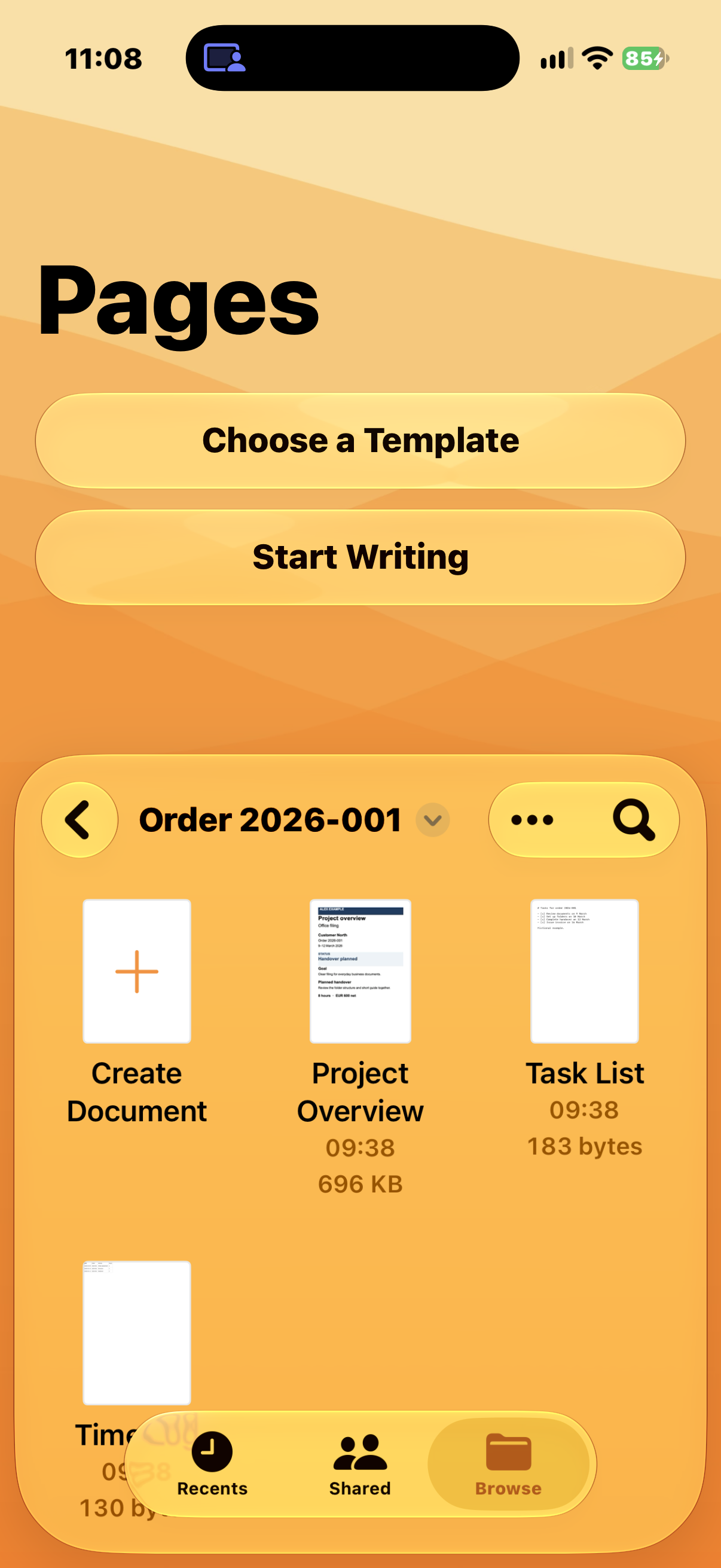
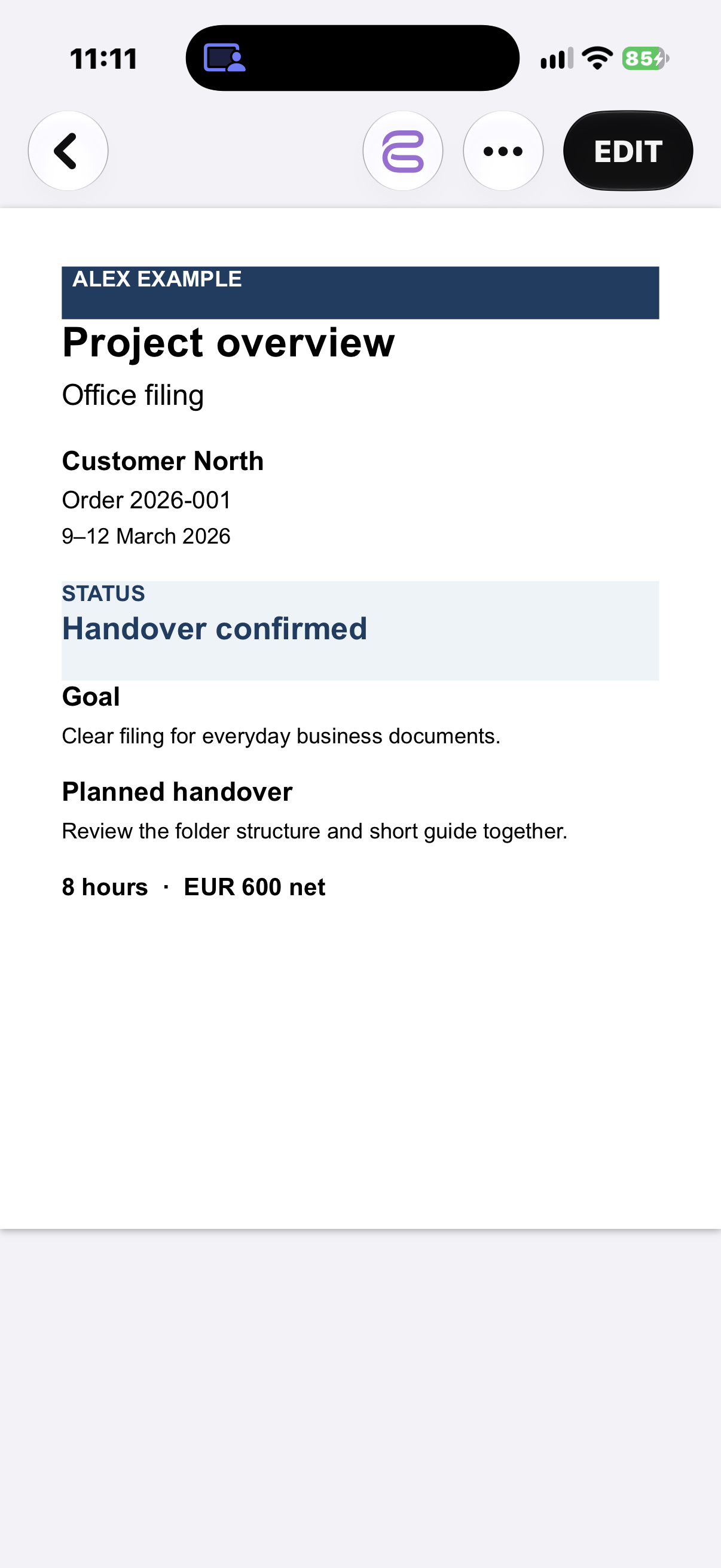
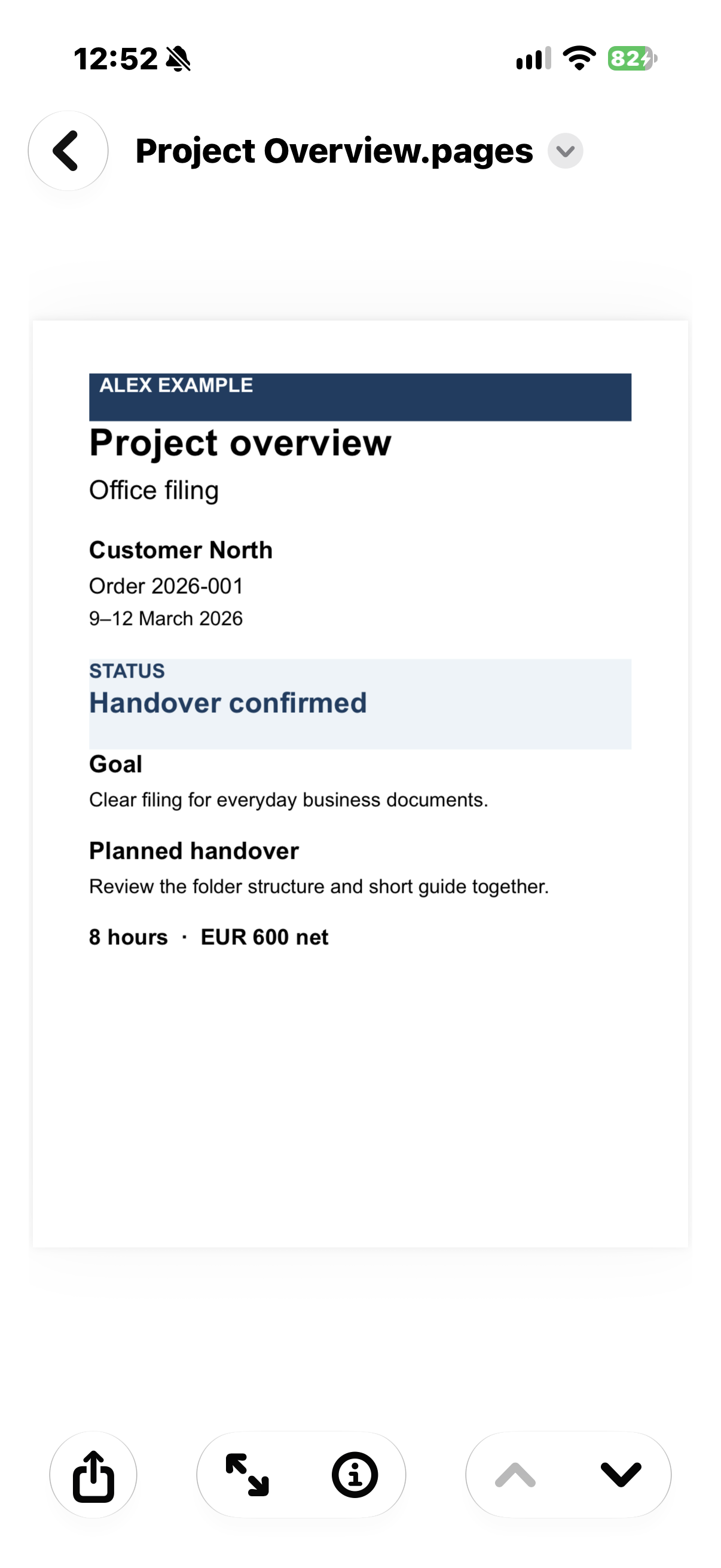
Our example safe, My Business, already contains Project Overview.pages. Open it from Pages, change the status from “Handover planned” to “Handover confirmed,” then check the result in the safe.
- Open Pages. If a document is open, use the Back button to return to the document manager.
- On iPhone, tap Browse and go back to the locations list if needed. On iPad, use the sidebar or location selector.
- Select SimpleumSafe. Authenticate to your safe if prompted.
- In our example, open Orders → Order 2026-001 and tap Project Overview.
- If the document opens in reading view, tap Edit.
- Change Handover planned to Handover confirmed. Pages saves changes automatically as you work. Finish text entry with the checkmark if needed, then use the Back button to return to the document manager.
Check the change in the safe
When editing in place works with the app and document, the File Provider returns changes to the original file in the safe. After finishing, open the document in SimpleumSafe and check that it contains Handover confirmed.
If you imported the document into Pages or created a copy, the change may be in that copy instead. An identical filename alone does not prove that you are editing the original from the safe.
4. Save a new document to the safe from another app
If an app supports saving through Apple’s file picker, you can choose the safe as the destination. The exact commands vary between apps. Pay attention to whether the final action moves the document or saves an additional copy.
Example: Save a new document from Pages
- In Pages, tap Browse and choose a local location such as On My iPhone. Tap Start Writing, enter your content, and finish text entry with the checkmark.
- Open More (…) → Document Options → Rename. Give the document a clear name, here Handover Note.
- Open More (…) → Document Options → Move.
- Select SimpleumSafe in the destination picker. Choose your safe and authenticate if needed. A safe with a valid authorization may open directly.
- Open the destination folder, here Orders → Order 2026-001, and tap Copy.
- Open the safe in SimpleumSafe and check the new file and its contents in that folder.
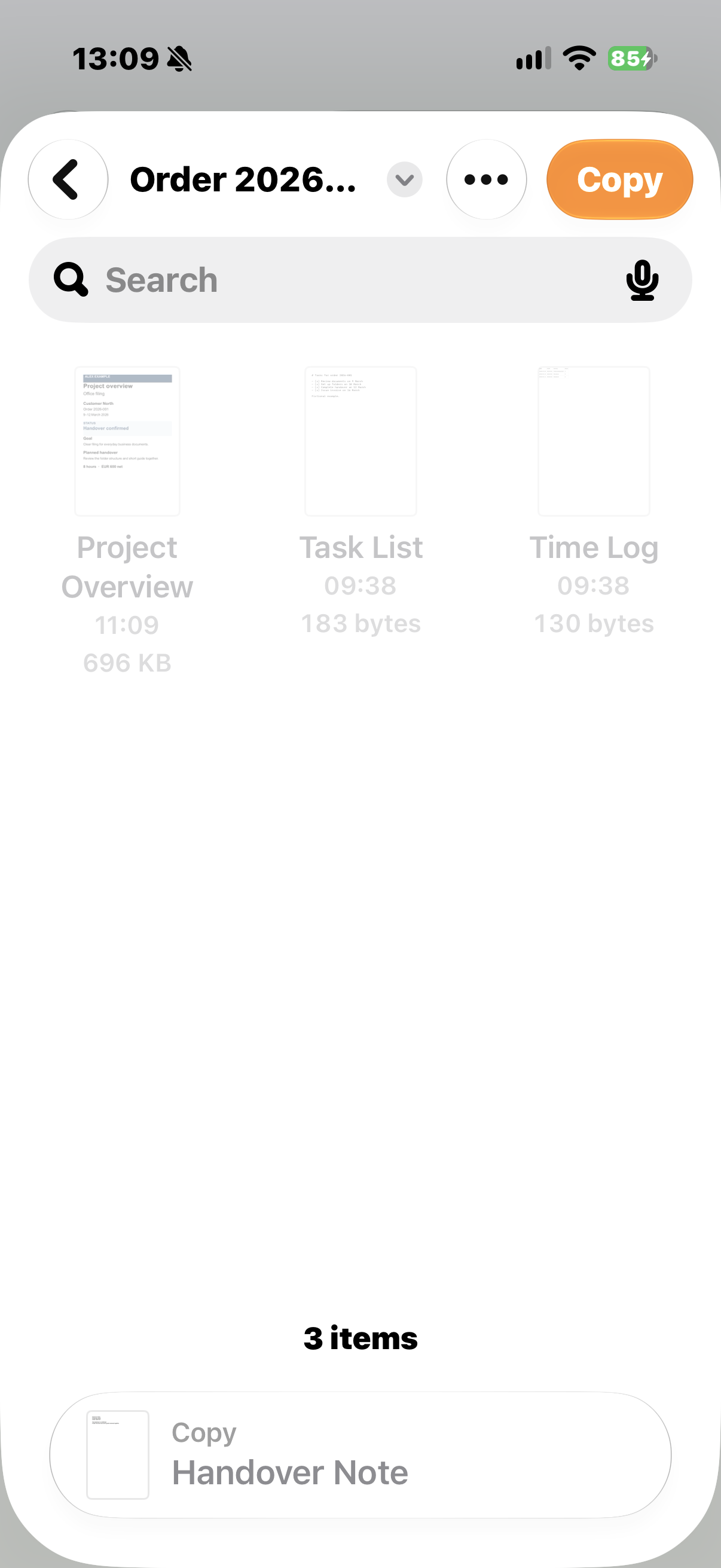
Follow the confirmation actually shown: Copy places an additional file at the destination. Do not assume the source has been removed just because you started with Move. When editing later, open the version you want from its specific location. Exporting as PDF, for example, creates a separate output and does not replace the editable Pages original.
5. Common questions and important limits
Editing in place
You open the file from its location. An app that supports this workflow saves changes back to that file.
Importing into the editing app
The app takes the document into its own storage. Changes there do not automatically update the original in the safe.
Exporting
You output a file to a chosen location, sometimes in another format. An output saved outside the safe relies on the protection of its new location.
Saving a copy
You create another file. The original and the copy can subsequently contain different changes.
A document already open in an editing app is different from a new request to access the safe. Expiration and saving a change back must therefore be considered separately.
Check that you selected the correct location and folder. The editing app may also limit the file types it offers. A file being visible in SimpleumSafe does not mean that every other app can edit it.
The contents stored in the safe are encrypted. For editing, SimpleumSafe provides the other app with a readable working file. That app can process the content and may save its own copies. The safe cannot manage those additional copies in the same way as its own contents.
If you need help
Note your versions of SimpleumSafe, the editing app you used, and iOS or iPadOS, the file format, and the exact message shown. Explain whether you edited an existing document or saved a new one. Do not send your safe password or recovery credentials to support.